
SpaceClaim Course, Session 2: Workspace, Toolbars and Tree Panel
Free
- Introduction to the Ribbon and the main structure of the SpaceClaim user interface.
- Working with the Structure Panel: Managing geometric components and creating groups.
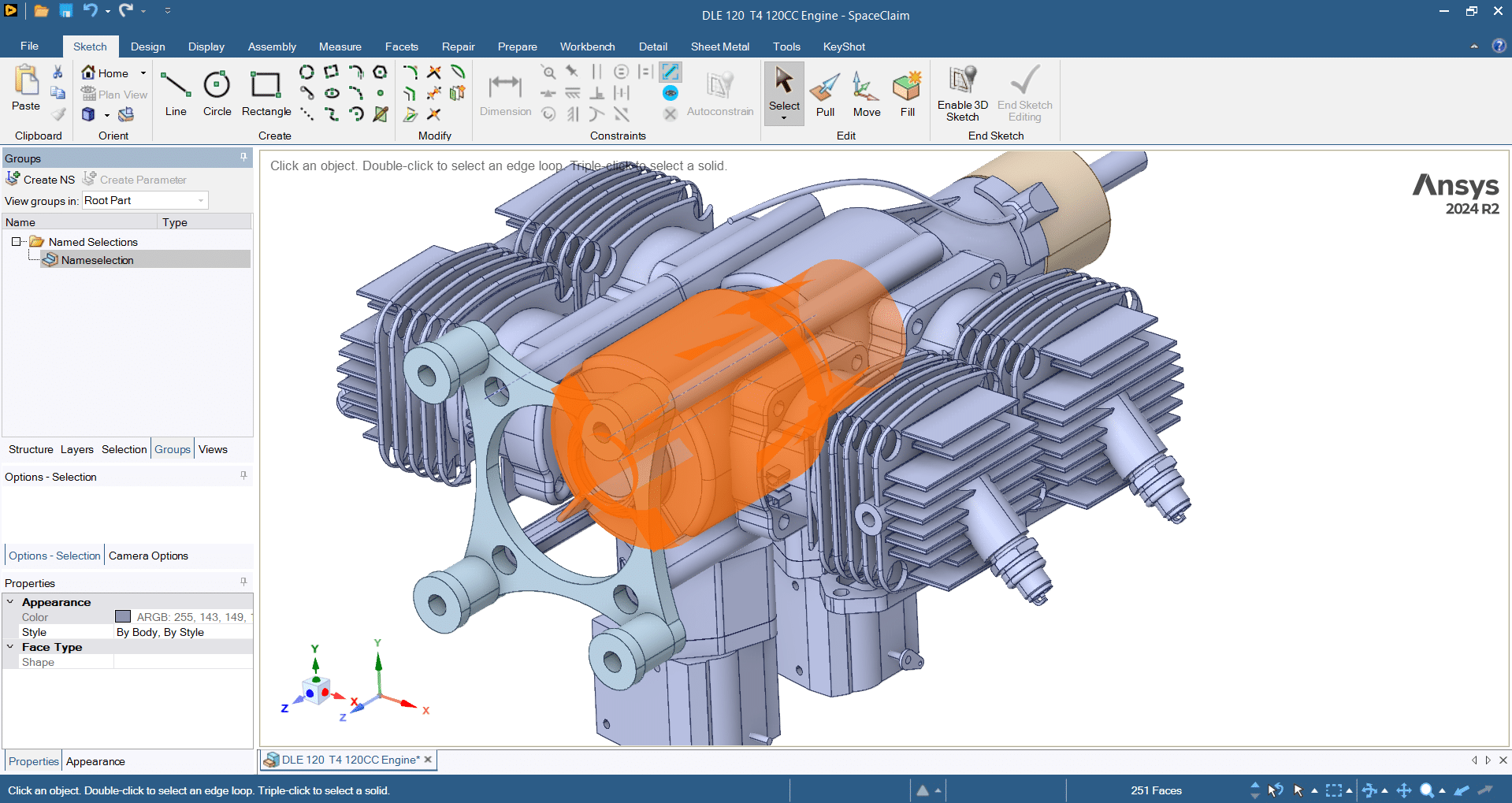
- Name Selection: Defining and reusing named geometry selections for easier management.
- View Tools: Adjusting the display, perspectives, and angles of geometry.
- Navigation Controls: Zooming, rotating, and panning using the mouse and View bar.
- Customizing the Workspace: Rearranging tool locations and restoring the default environment.
- Preparation for Direct Design and Modeling: Building confidence, clarity, and control in using SpaceClaim.
To Order Your Project or benefit from a CFD consultation, contact our experts via email (info@mr-cfd.com), online support tab, or WhatsApp at +44 7443 197273.
There are some Free Products to check our service quality.
If you want the training video in another language instead of English, ask it via info@mr-cfd.com after you buy the product.
Description
Workspace, Toolbars and Tree Panel
The purpose of this session is to guide students towards easier and more efficient use of the SpaceClaim software and to provide a clearer understanding of its user interface. In this session, the essential elements of the interface and the overall structure of the software will be introduced, preparing students with the necessary background before starting practical modeling. These foundations are very important, since having a complete familiarity with the environment and its features is essential before beginning 2D and 3D design.
1. User Interface Overview
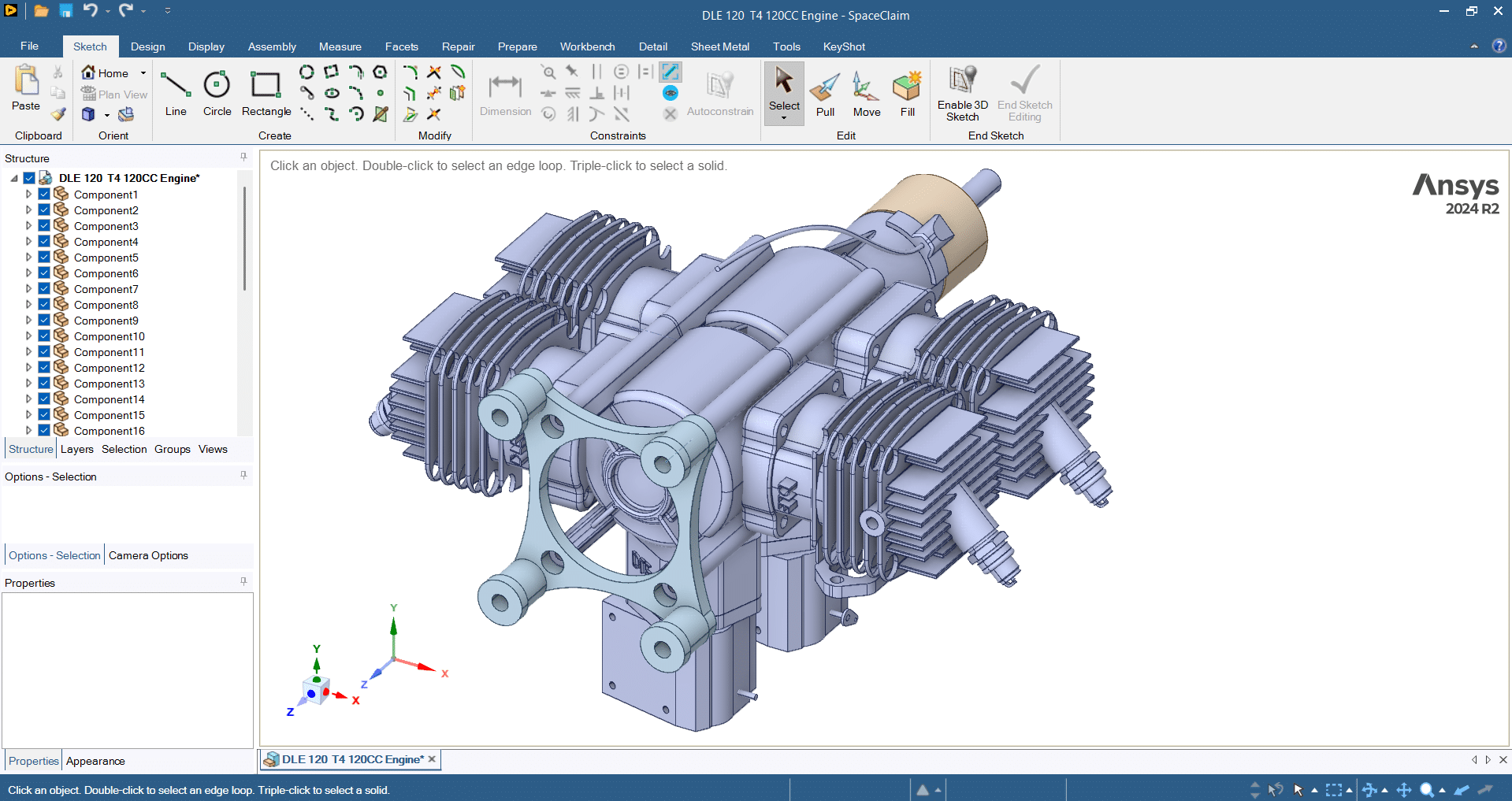
To help students of this course become more familiar with the SpaceClaim software, we begin by explaining some of the key elements of its interface. One of the most important components is the Ribbon toolbar, which is organized into clear and functional tabs. This organization is designed to provide quick access to commands while offering a visual and user‑friendly workspace. Such a layout reduces complexity and makes the learning process easier and more effective for students.
2. Structure Panel
Another key aspect of this session is focusing on the Structure Panel, which serves as the backbone of project organization in SpaceClaim. In addition to its traditional functionality, the panel offers modern and enhanced features. During this session, you will learn how to view, group, and manage parts and assemblies within the Structure Panel. Mastering this skill will enable you to better organize your projects and maintain greater control over the design process.
In addition to the previously mentioned functions of the Structure Panel, several other important features are also available to users. One of the most significant is the Group (Name Selection) section, where you can organize different geometry elements such as planes, lines, and solids according to the needs of your simulation.
3. Navigation Tools
In this lesson, the essential Navigation Controls used for interacting with 3D models are also introduced. These include functions such as Zoom, Rotate, and Pan, which can be performed using the mouse or through the View bar in the Structure Panel. By applying these controls, users can adjust the viewing angles according to their needs and examine or refine their geometry with the necessary accuracy and confidence.
4. Workspace Customization
Finally, this session will cover the customization of the software workspace. Learners will be introduced to how they can manually arrange the placement of tools. Furthermore, they will learn how to reset the interface back to its default state in case of accidental or undesired changes. Such adaptability of the software environment is provided as a means to enhance productivity and align the workspace with the users’ preferences.
Summary
By the end of Session Two, participants are expected to have a clear understanding of the SpaceClaim user interface and its organizational framework. They will also acquire skills in managing panels, utilizing navigation tools, and preparing the 3D workspace—laying the foundation for direct design and modeling in the upcoming sessions. These achievements will provide greater efficiency, clarity, and confidence in using the software, while deepening the learners’ familiarity with SpaceClaim as a powerful tool for design and simulation.
You must be logged in to post a review.

 Talk On WhatsApp
 Talk On WeChat

Reviews
There are no reviews yet.