
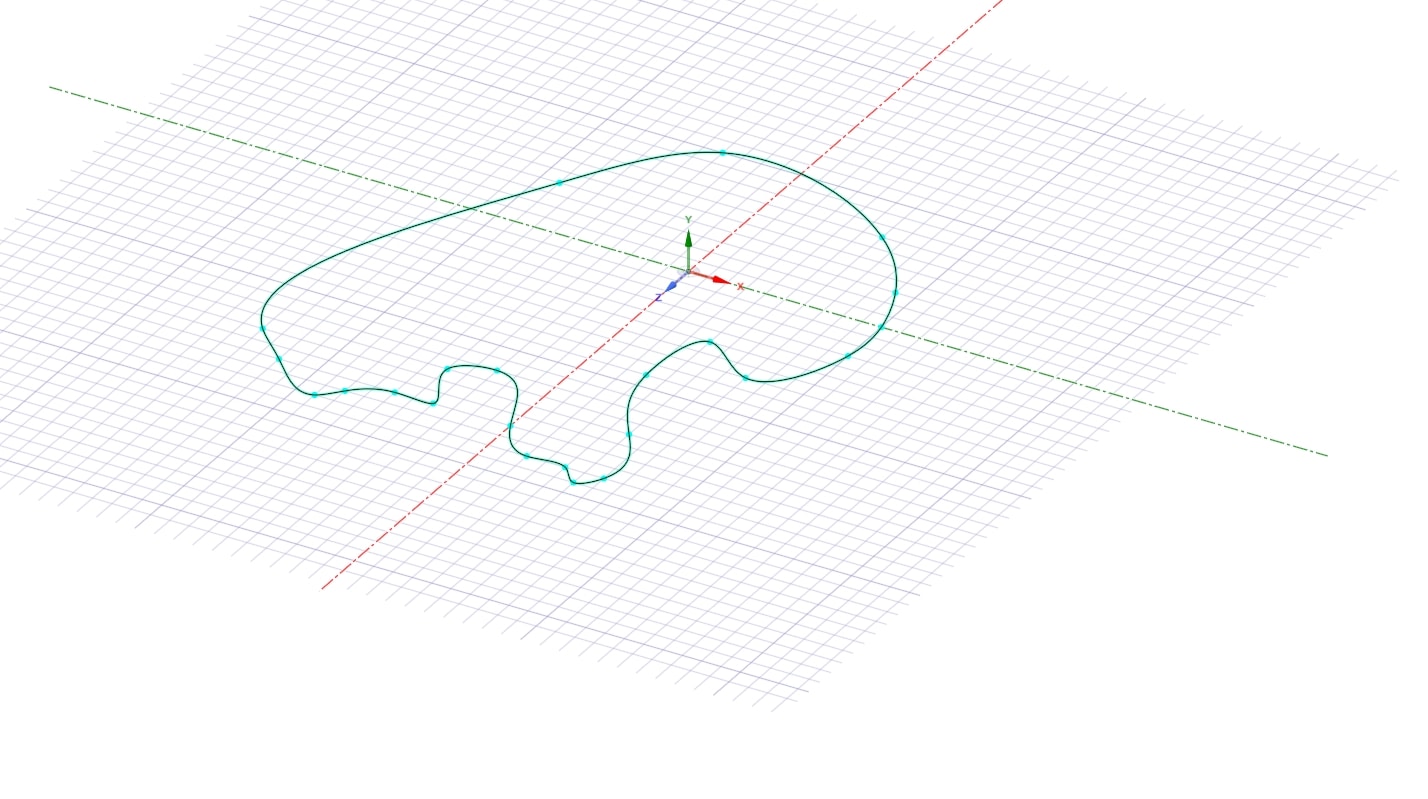
SpaceClaim Course, Session 11: Practical Blend Command
Free
- Practical review of SpaceClaim’s Blend command for connecting points, lines, surfaces, and bodies.
- Contrast the default smooth path with Ruled Segments, which converts connections to straight lines.
- Close open profiles using Periodic Blend by automatically linking the first and last selections.
- Control the blend’s shape with Select Guides by choosing one or more guide curves for precise routing.
- Set overall direction and curvature with Select Centerline, ideal for axis- or tube-like blends.
To Order Your Project or benefit from a CFD consultation, contact our experts via email (info@mr-cfd.com), online support tab, or WhatsApp at +44 7443 197273.
There are some Free Products to check our service quality.
If you want the training video in another language instead of English, ask it via info@mr-cfd.com after you buy the product.
Description
1. Introduction
The Blend Command is one of the highly practical tools in SpaceClaim, and learning it is essential for working with SpaceClaim.
In this session, we will provide precise, practical instruction on this command by presenting concrete, hands-on examples.
2. Objectives
Our aim in this session is to learn the basic, foundational applications of this command so that learners gain a practical understanding of its operation and can later use its capabilities in their advanced drawings as needed. The Blend command can be used to connect points, lines, surfaces, and even bodies, all of which are explained in order in this tutorial. This command also has auxiliary options such as Ruled Segments, Periodic Blend, Select Guides, and Select Centerline, all of which are explained.
2.1. Ruled Segments
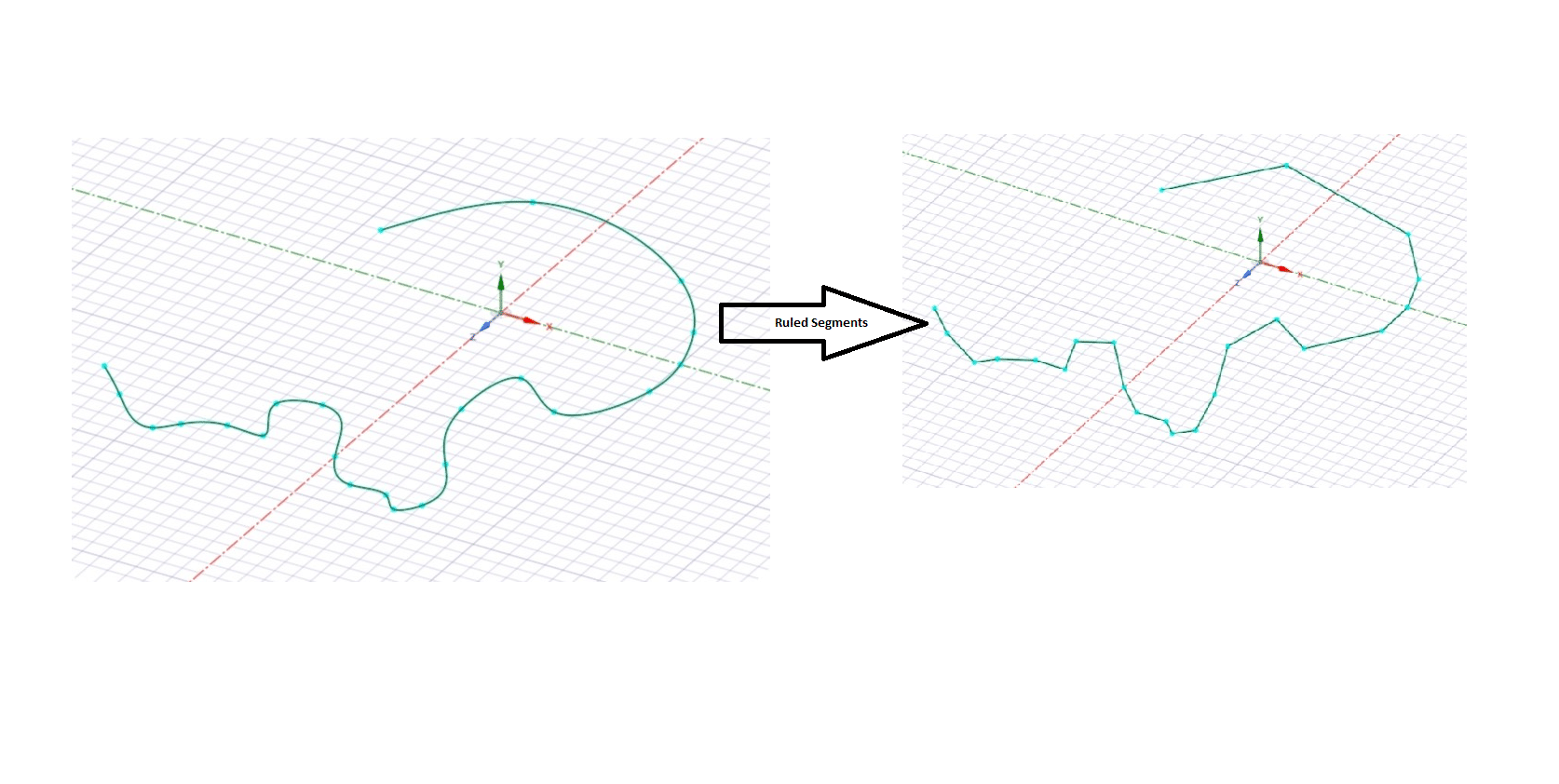
For explaining the Ruled Segments command, I will use this curve that I connected using the Blend command. As you can see, by default the software uses smooth lines to connect these points; but when we activate this option, the software connects the points with straight lines.
2.2. Periodic Blend
When you need a closed shape from a set of selected points/curves, enable Periodic Blend. The software will automatically connect the first and last selections, turning the open blend into a closed loop without reselecting endpoints. This is useful for building closed profiles from points, edges, or curves while keeping the same blend behavior between intermediate segments.
2.3. Select Guides
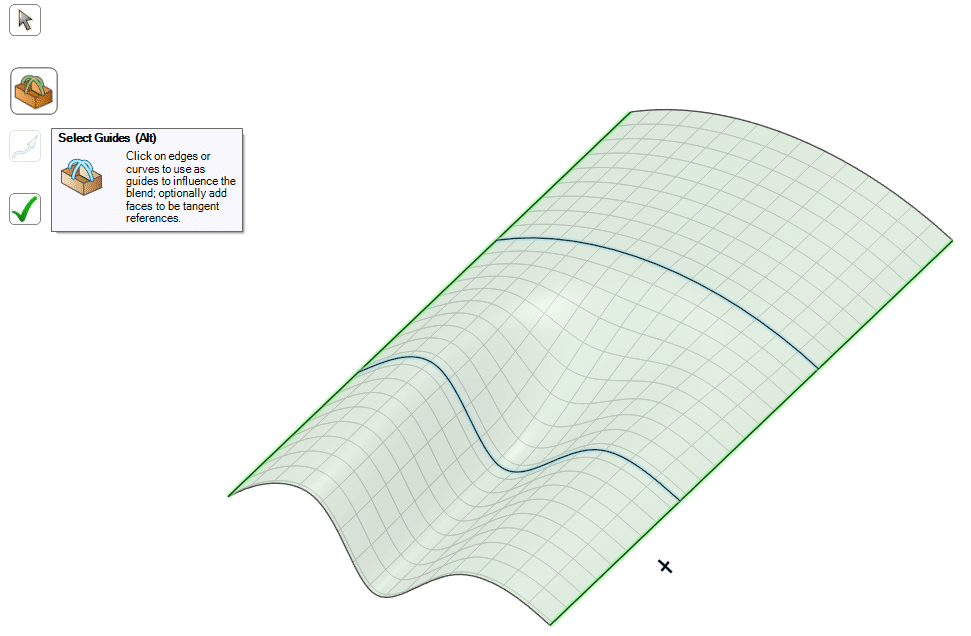
After selecting your target points/lines, enable Select Guides and click the guide curve(s). By holding Ctrl, you can choose multiple guides. The Blend Command then follows the selected guide path(s) instead of the default path, giving you precise control over the shape.
2.4. Select Centerline
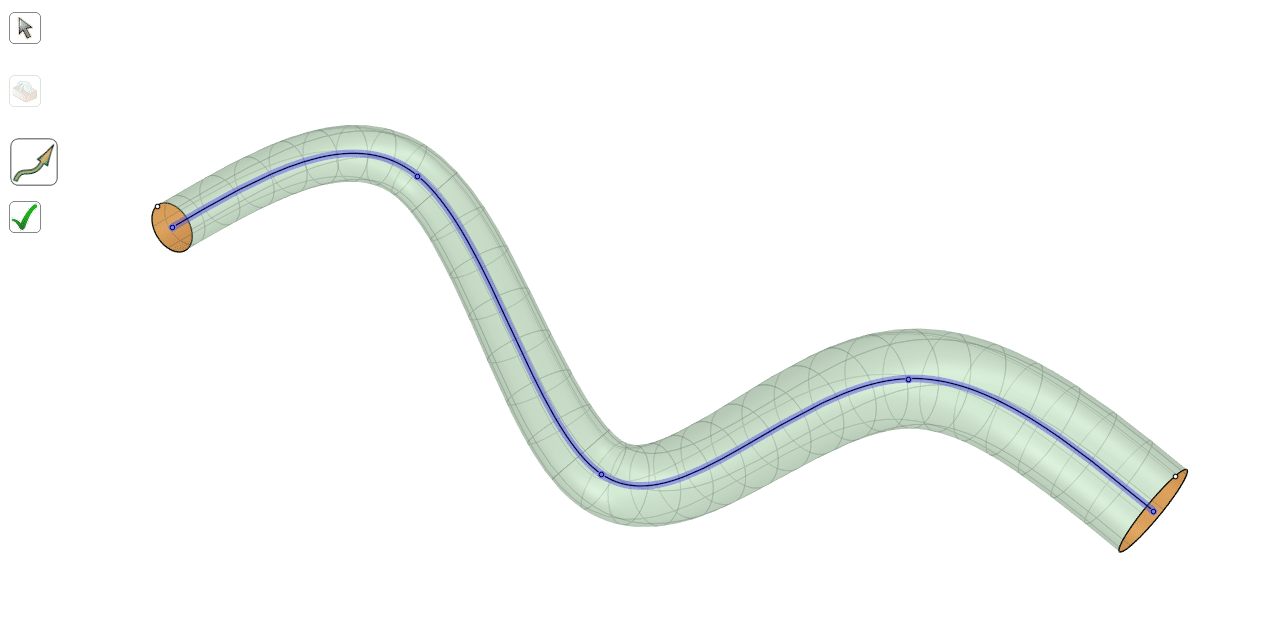
After selecting your target points/lines, enable Select Guides and click the guide curve(s). By holding Ctrl, you can choose multiple guides. The Blend Command then follows the selected guide path(s) instead of the default path, giving you precise control over the shape.
3. Summary
This session provides a practical overview of SpaceClaim’s Blend command for connecting points, lines, surfaces, and bodies. We contrast the default smooth connections with Ruled Segments, which converts paths to straight lines when needed. Periodic Blend is used to automatically close open profiles by linking the first and last selections. With Select Guides, one or more guide curves can shape the blend’s path for precise control. Finally, Select Centerline directs the overall trajectory and curvature of the blend along a chosen axis or center curve.
You must be logged in to post a review.
 Talk On WhatsApp
 Talk On WeChat

Reviews
There are no reviews yet.