
SpaceClaim Course, Session 13: Shell Tool
Free
- Creating hollow bodies using the Shell command.
- Shelling a body by selecting faces.
- Explaining the More Shell option for shelling newly added geometry.
To Order Your Project or benefit from a CFD consultation, contact our experts via email (info@mr-cfd.com), online support tab, or WhatsApp at +44 7443 197273.
There are some Free Products to check our service quality.
If you want the training video in another language instead of English, ask it via info@mr-cfd.com after you buy the product.
Description
1. Introduction
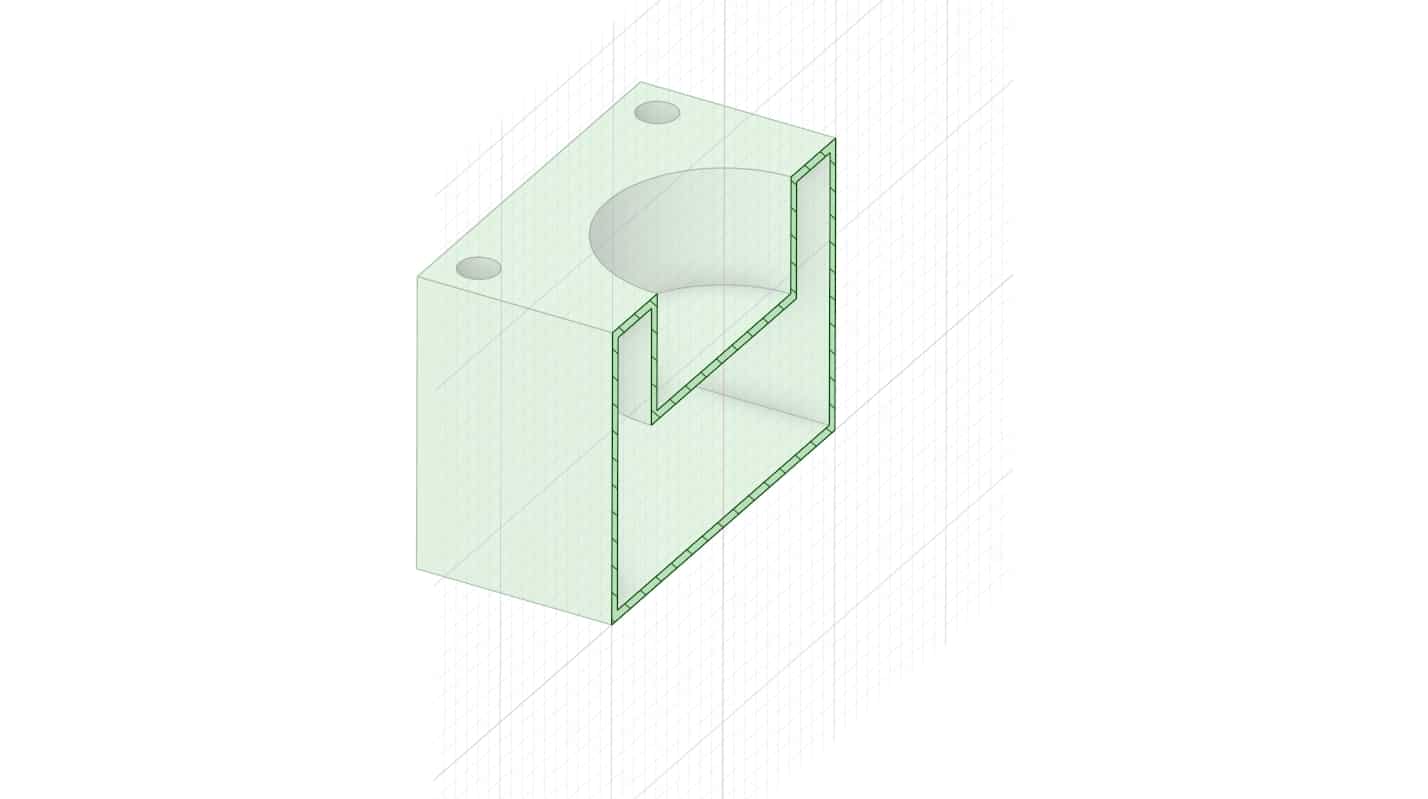
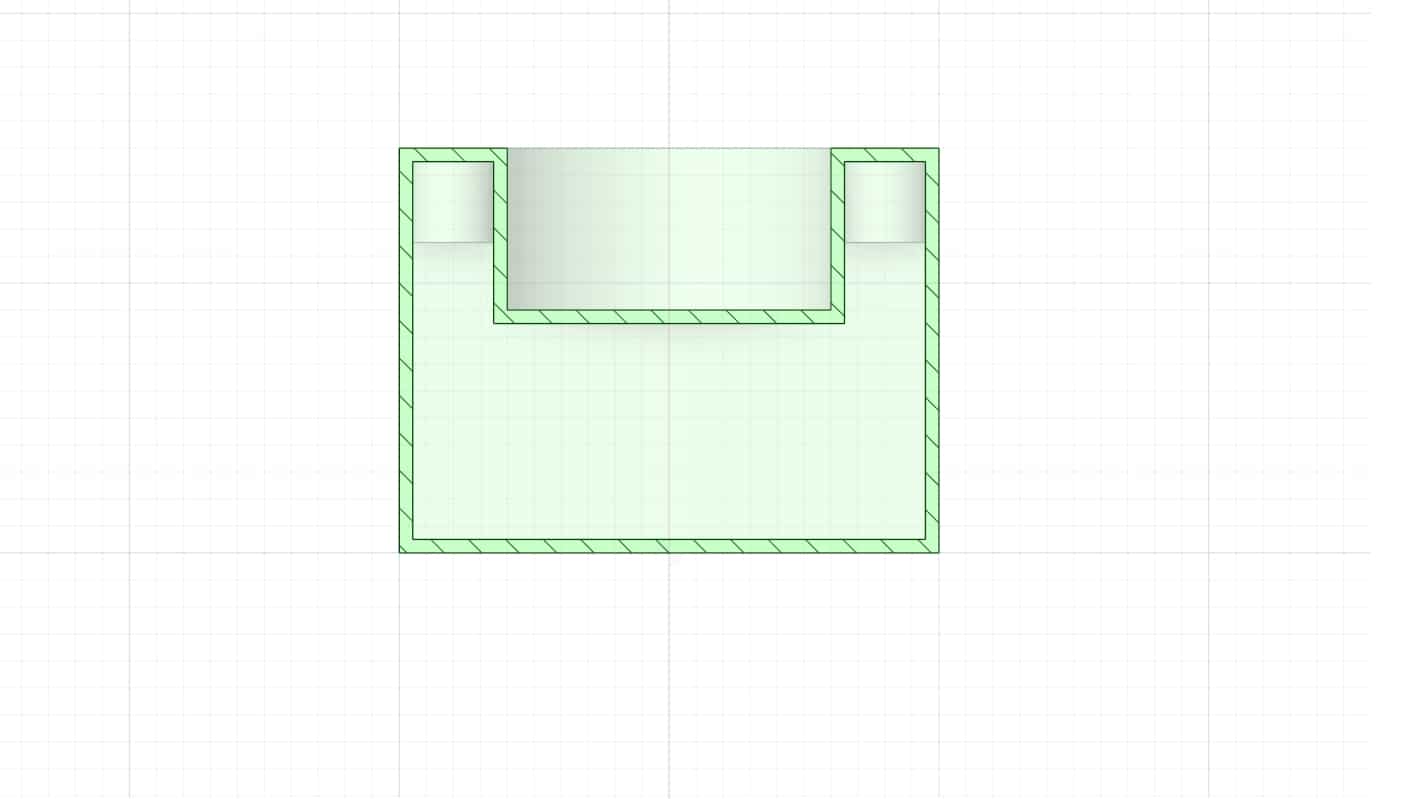
The Shell tool is one of the practical tools in the Design workspace of SpaceClaim. It allows you to hollow out a solid body with a uniform wall thickness, and you specify that thickness yourself.
Use cases for the Shell tool include situations where we want to make a lighter part and save material and cost, as well as creating thin wall geometry for plastic parts or other similar components.
2. Objectives
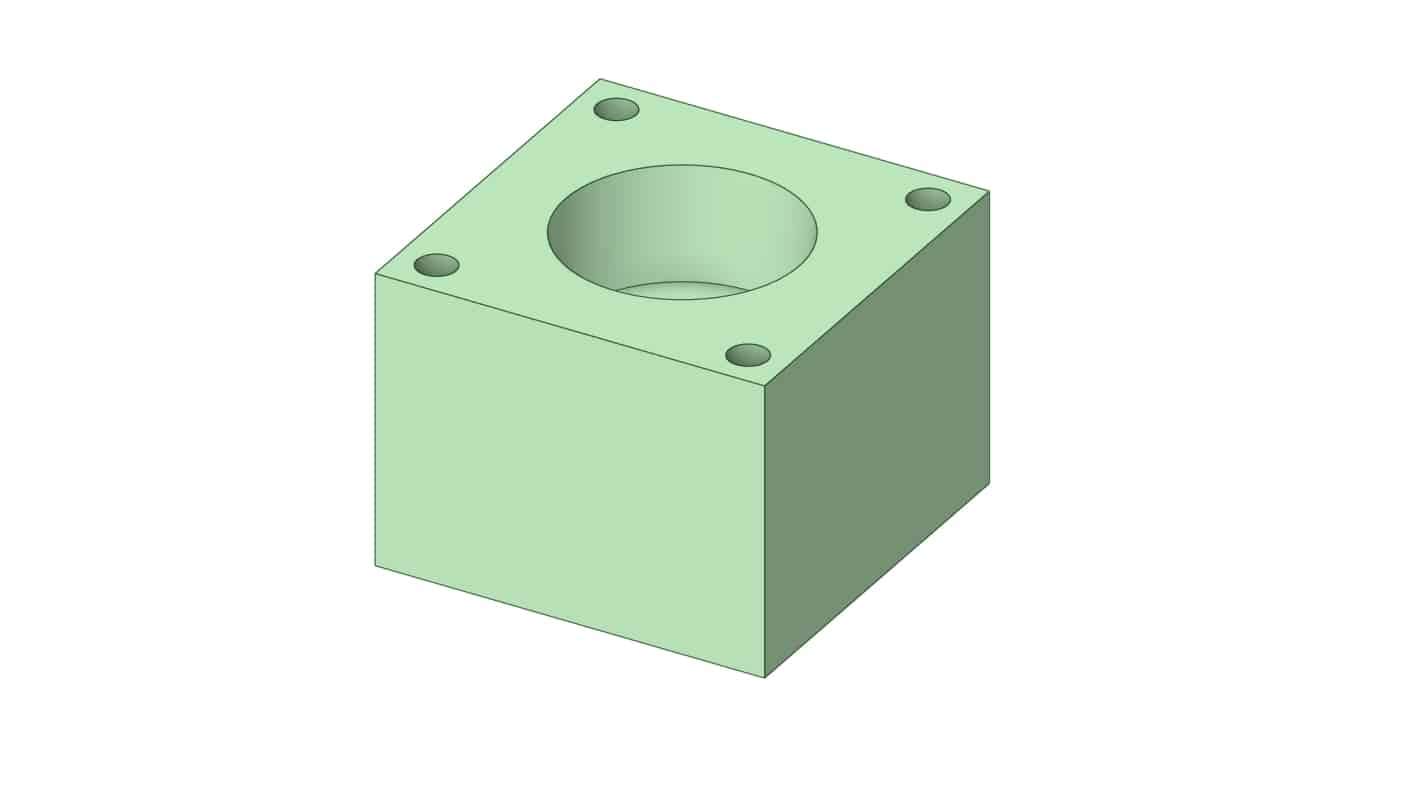
In this lesson, we explain the purpose and operation of the Shell command through a practical example. In general, there are several ways to apply shelling to a geometry. One approach is to create a closed hollow body with a specified wall thickness; the procedure for building such a part is demonstrated.
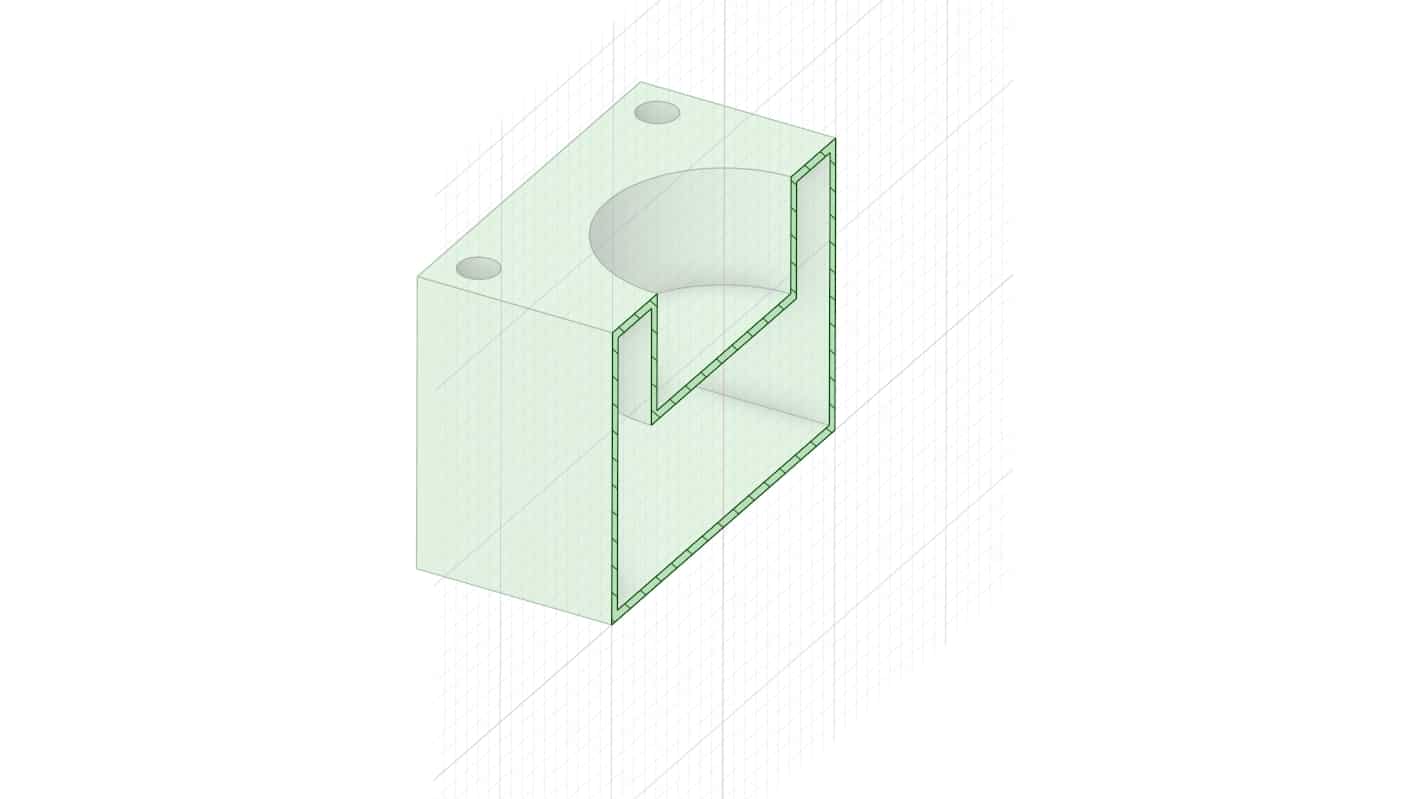
Another approach is face based shelling: select specific faces to remove, and the remainder of the body is shelled.
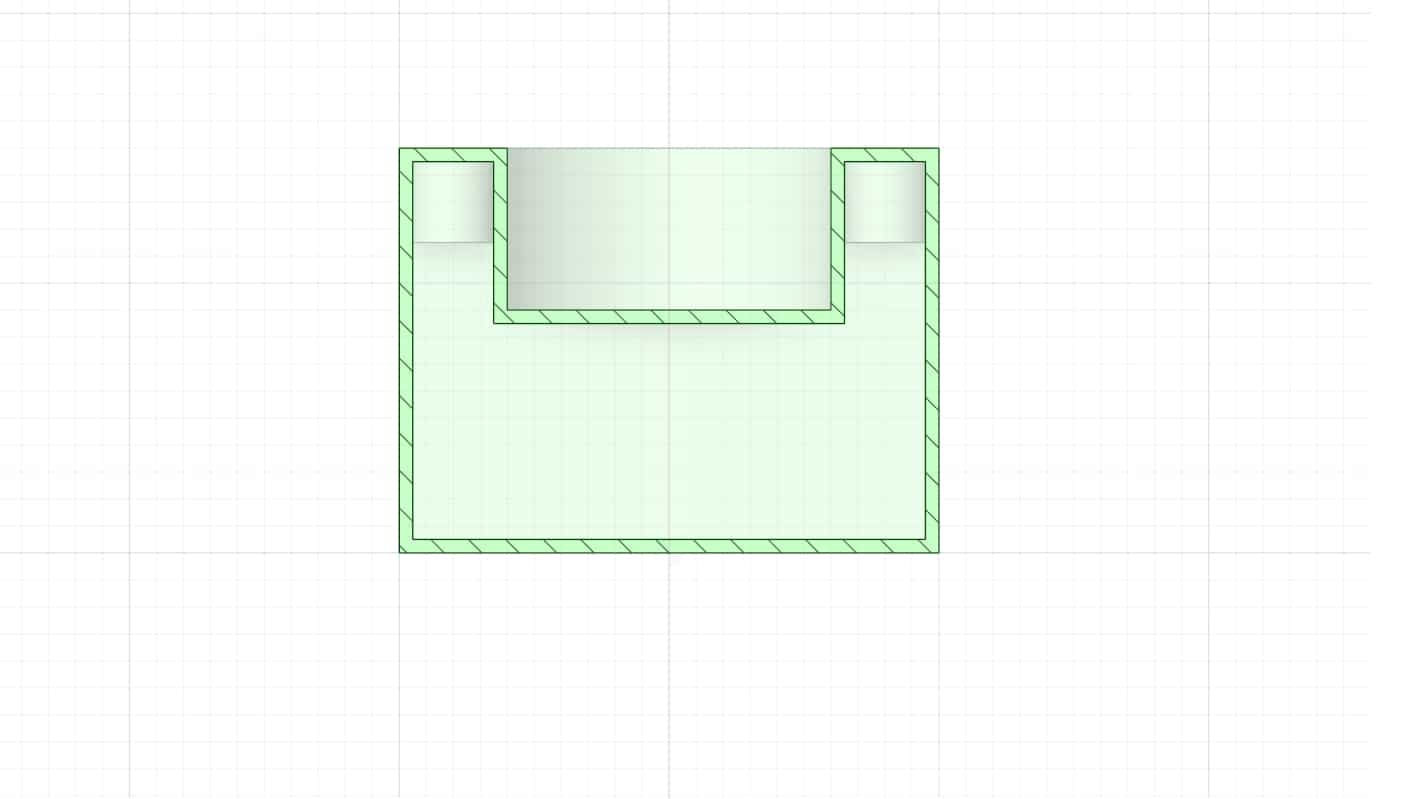 Finally, we cover the More Shell option, used when the model has already been shelled and you subsequently add new features; choosing More Shell applies the same shell thickness to the newly added regions as well.
3. Summary
The Shell tool in SpaceClaim’s Design workspace hollows a solid with a user-defined, uniform wall thickness. You can remove selected faces to open the part, while the rest of the body offsets to form the shell. It’s ideal for lighter parts, saving material, and creating thin-wall, plastic-style geometry. Use More (Shell) to apply the same thickness to features added after the initial shell.
You must be logged in to post a review.


 Talk On WhatsApp
 Talk On WeChat

Reviews
There are no reviews yet.