
SpaceClaim Course, Session 3: Layout, Units and Display Tools
Free
- Exploring Snap to Grid for more precise sketching on the grid.
- Exploring Snap to Angle for quick alignment with standard angles.
- Getting familiar with the Display Tab and different geometry visualization modes.
- Using Split Viewports to improve visibility and model analysis.
To Order Your Project or benefit from a CFD consultation, contact our experts via email (info@mr-cfd.com), online support tab, or WhatsApp at +44 7443 197273.
There are some Free Products to check our service quality.
If you want the training video in another language instead of English, ask it via info@mr-cfd.com after you buy the product.
Description
Workspace,Docking Layout, Units, and Display Tools
The goal of this session is to explore some of the most practical options available in SpaceClaim software, which help us design more accurately and efficiently. At the beginning, we will introduce tools such as Snap to Grid and Snap to Angle, which assist us in creating cleaner and more precise designs. After that, we will move on to the Display tab, which is useful for improving the way we visualize and analyze geometries. By understanding these features, we will be able to create models with higher accuracy and better organization. Overall, the purpose of this training session is to improve design quality and to become more familiar with practical tools that support effective design.
1. Snap to Grid
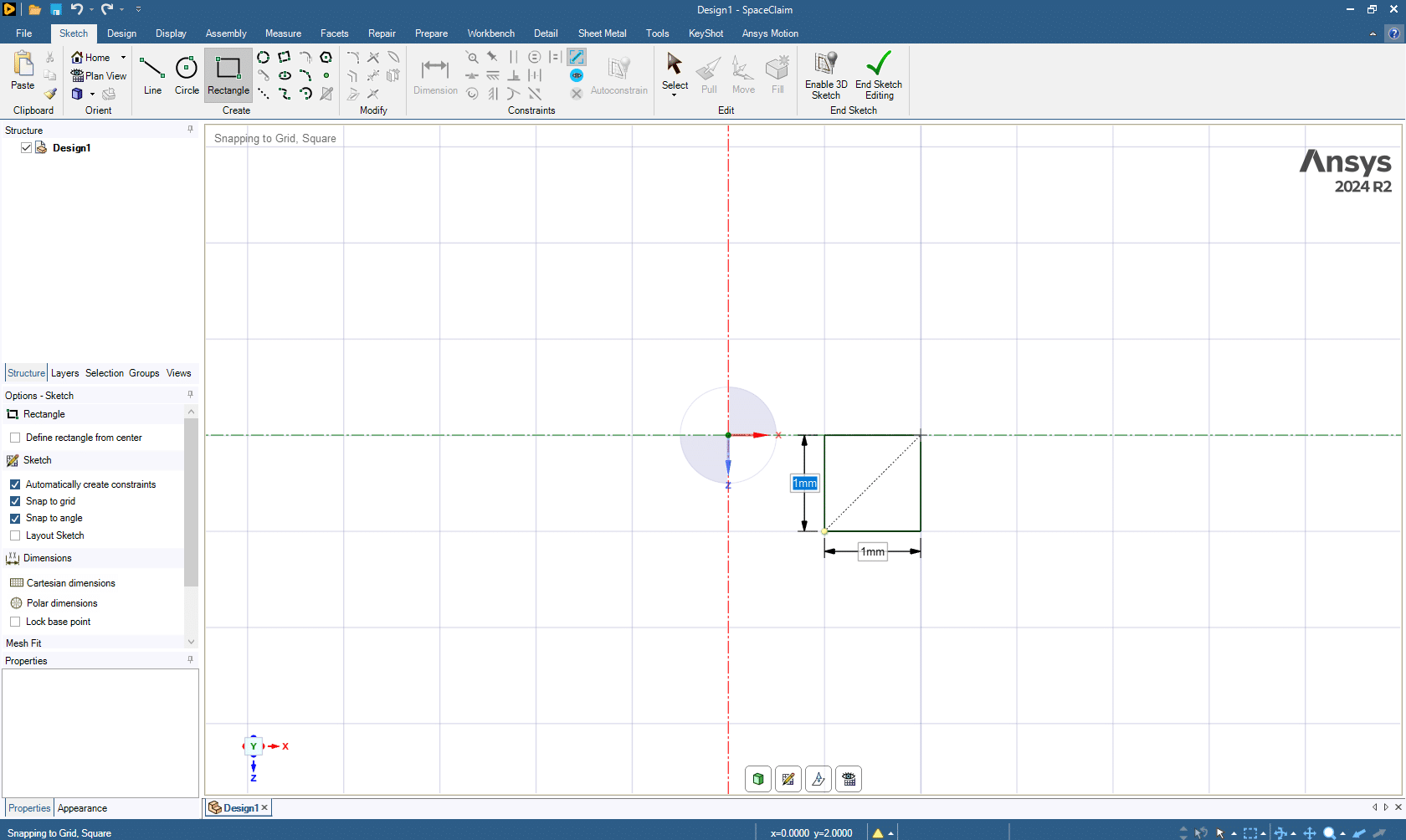
In Snap to Grid mode, when this option is turned on, sketches such as lines and points must start or end exactly on the grid corners. This helps achieve more precise geometry design, ensuring that the geometry is consistent and accurate for our modeling process. For example, when drawing a block, the software automatically snaps the starting point to the nearest grid corner. This feature can be very useful for creating more accurate geometry. However, when this option is turned off, the user has more freedom. While enabling it is helpful for creating precise and well-structured designs, disabling it provides more flexibility and freedom when sketching geometry.
 2. Snap to Angle
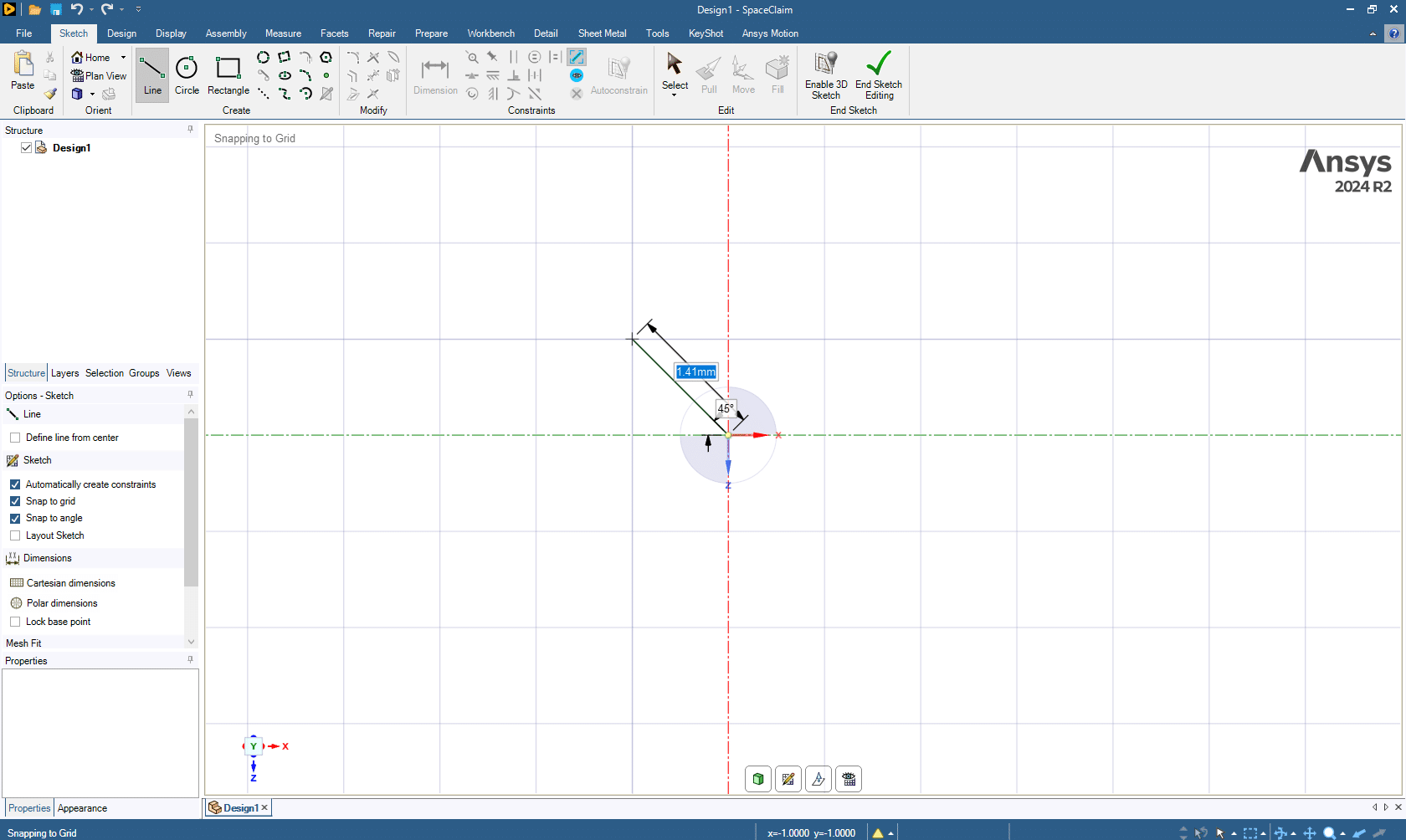
The Snap to Angle option is designed to make it easier to draw lines at standard and common angles. Normally, when drawing lines, the software may display non-standard angles such as 46.7 degrees. By enabling Snap to Angle, the software automatically locks the line to these standard angles. As a result, it becomes much easier for the user to find angles such as 15°, 30°, or 45°. This feature improves both the accuracy and the speed of creating clean and standardized angular relations, making the design process faster and more convenient.
 3. Display Tab and Graphics Options
Another important section is located in the Display Tab under Graphics, where several visualization modes are available:
- Wireframe: Shows the geometry only with edges, without any surfaces.
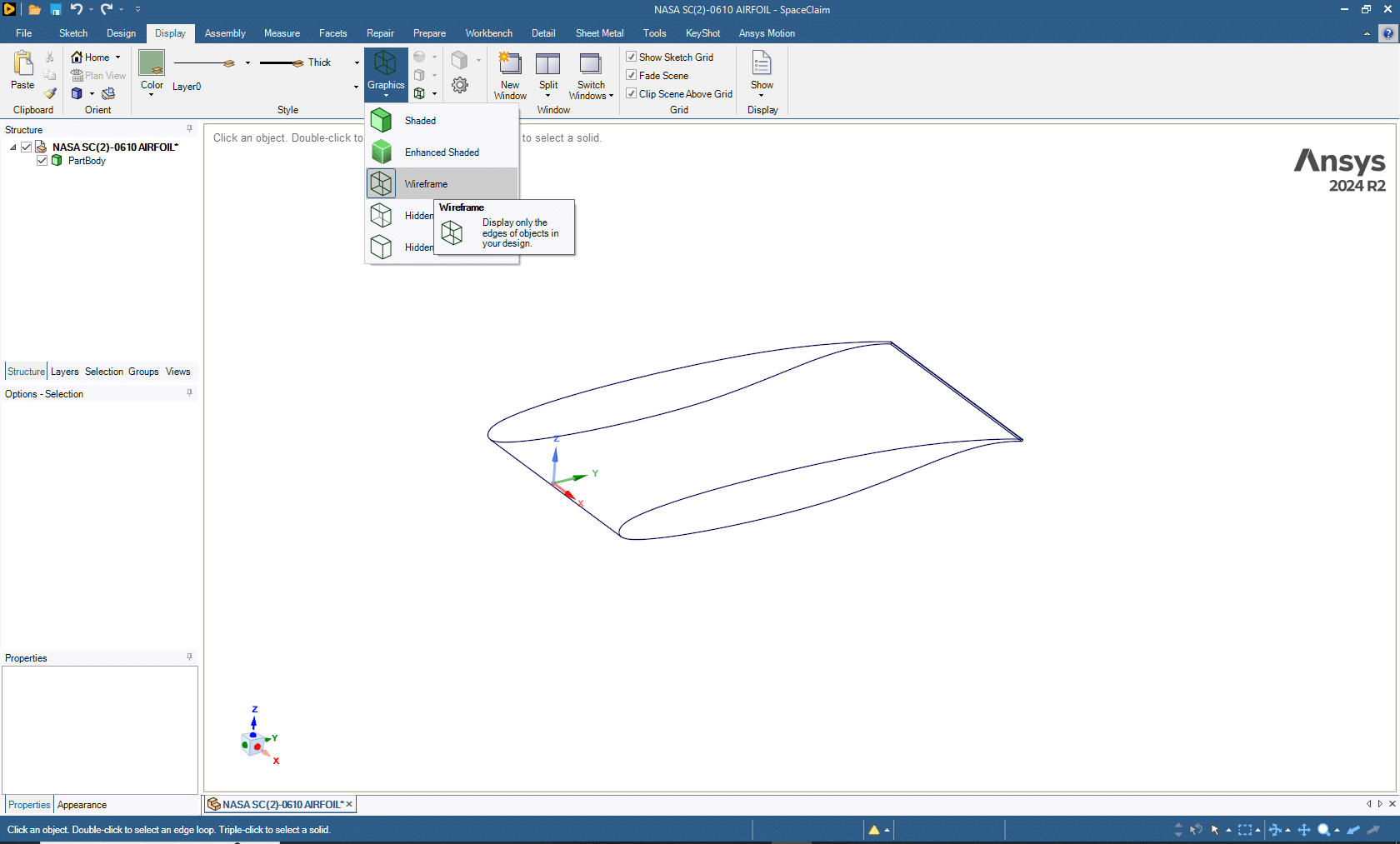
- Shaded: Displays the geometry with simple shading on surfaces.
- Enhanced Shaded: Provides an improved visual rendering for better surface clarity.
- Hidden Line: Displays both visible and hidden edges of the geometry, so the user can see the lines behind surfaces.
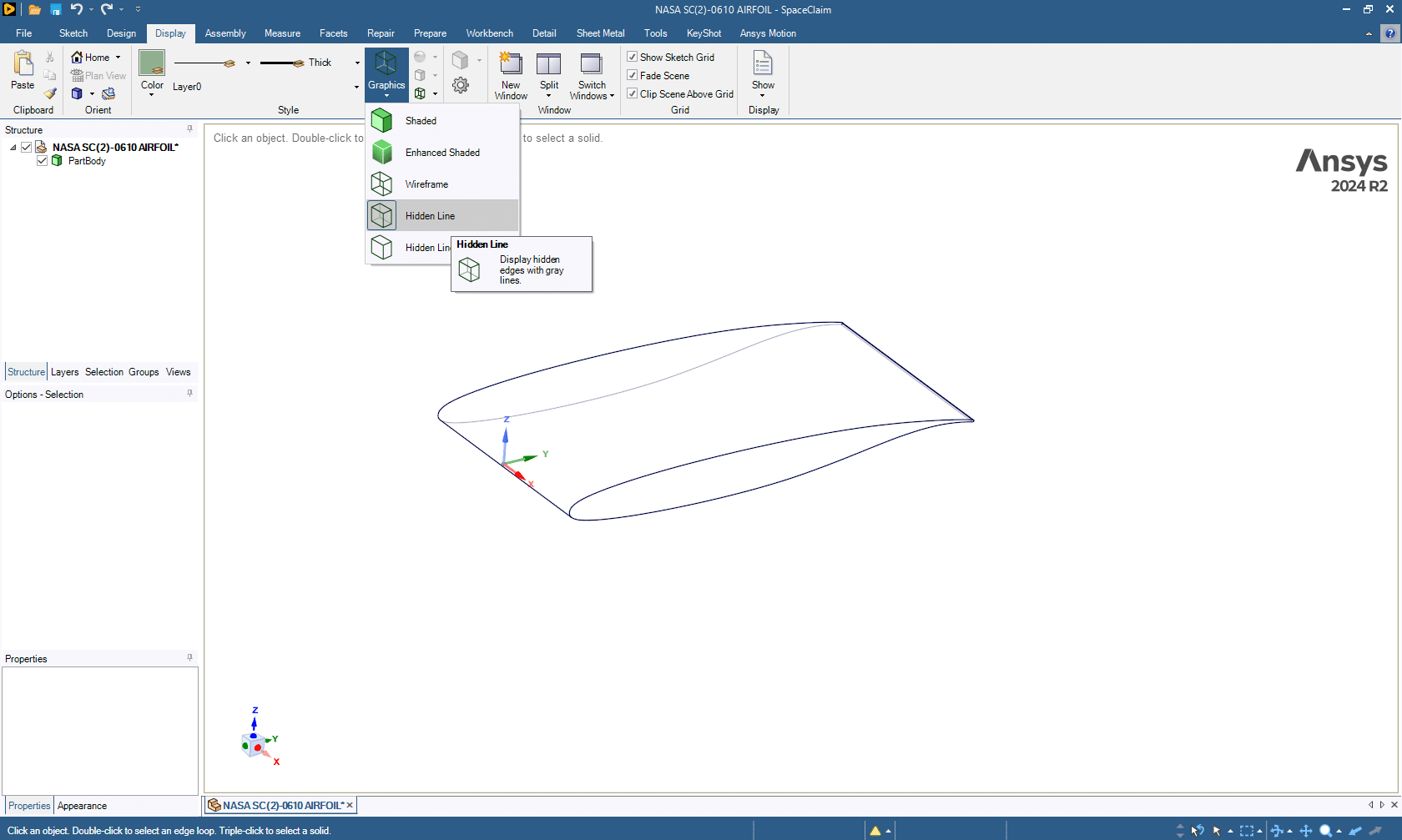
- Hidden Line Removed: Similar to the shaded view but without showing the hidden lines, which makes the geometry cleaner.
Additionally, the Split Viewports option allows the user to divide the display area into multiple simultaneous views:
- Two Vertical Viewports: Show the geometry from two different perspectives side by side.
- Four Viewports: Provide four different perspectives (e.g., top, front, side, and isometric), which increases clarity and helps in analyzing complex geometries.
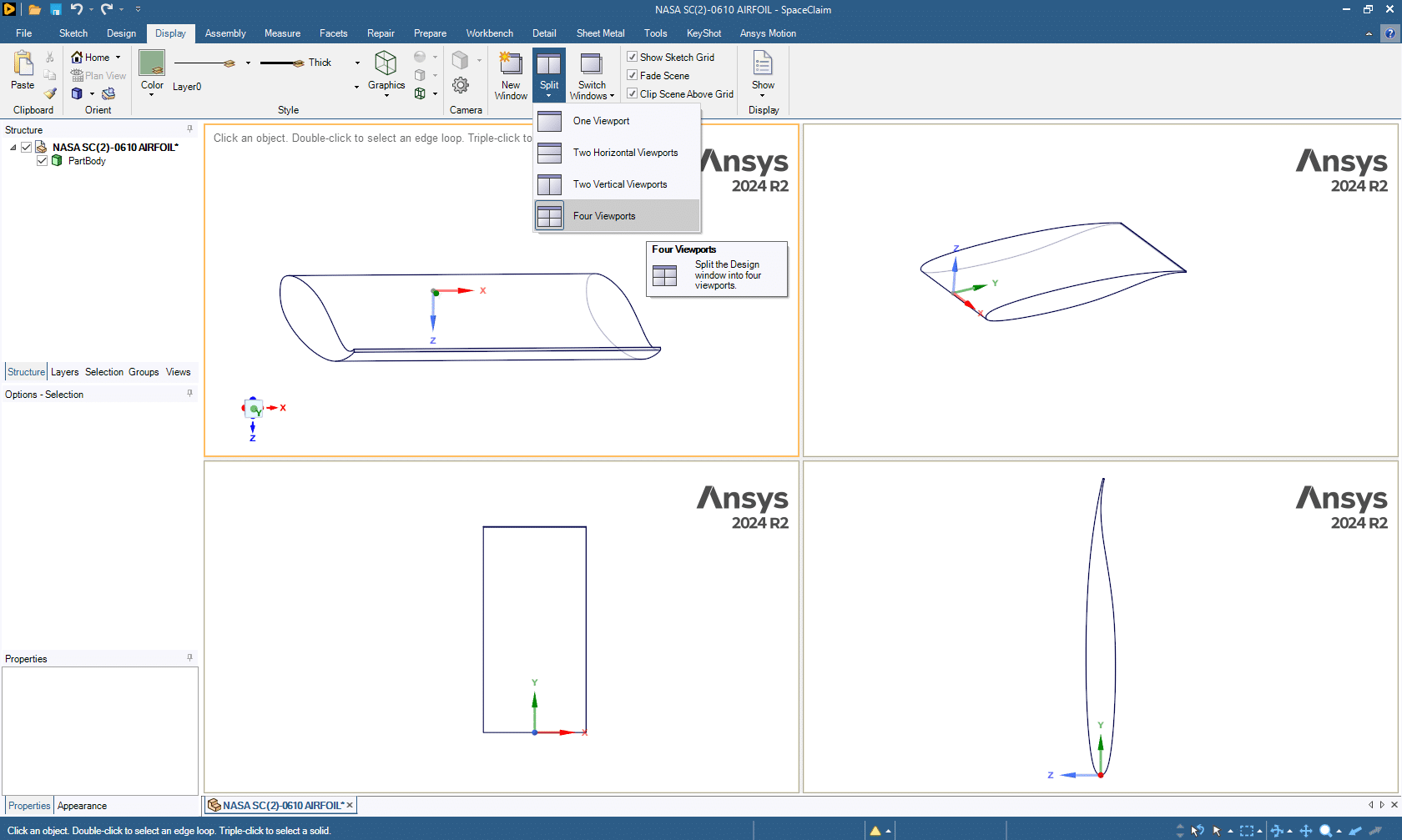 This flexibility in visualization helps users to check every aspect of their models and ensures better understanding and verification during the design process.
Conclusion
The combination of these tools : Snap to Grid, Snap to Angle, and Display Tab Options, provides powerful support for creating precise geometries and achieving clear visualization in ANSYS SpaceClaim.
- Snap to Grid ensures accurate placement.
- Snap to Angle simplifies working with standard angles.
- Display Options and Split Views enhance the visualization and understanding of the model.
Together, these features improve both the accuracy of designs and the efficiency of the design workflow.
You must be logged in to post a review.
 Talk On WhatsApp
 Talk On WeChat

Reviews
There are no reviews yet.