
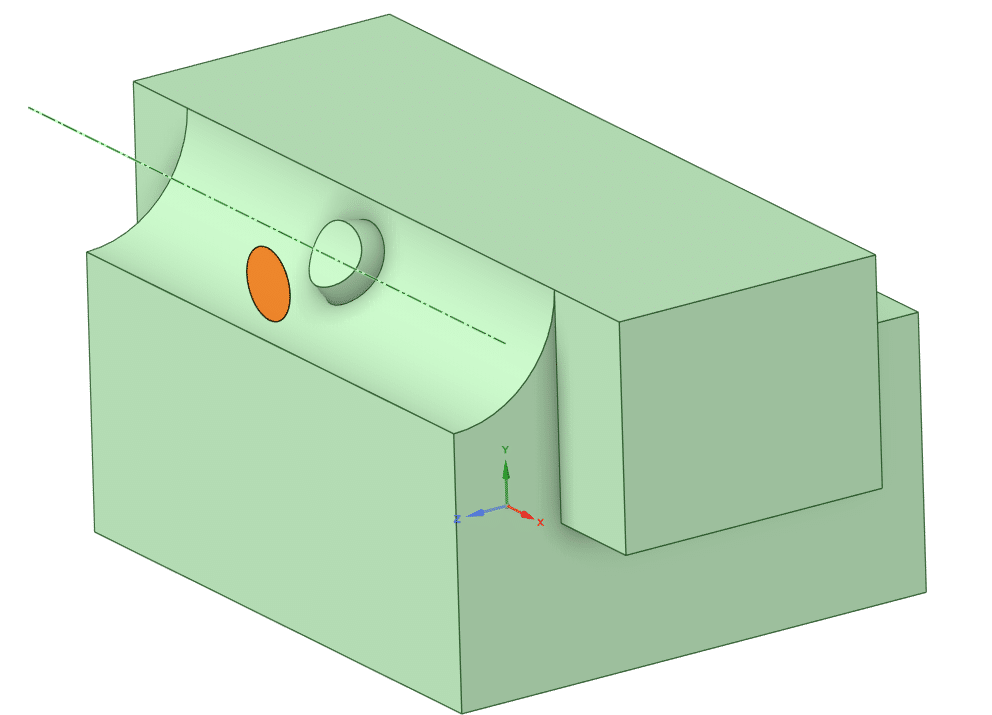
SpaceClaim Course, Session 8: The useful Combine Tool
Free
- merging and subtracting bodies with the Combine command.
- Use Split Body to separate geometries based on specific simulation needs.
- Apply Split Face for defining regions on complex surfaces.
- Creating and positioning planes precisely with the Create Plane tool.
- Project curves and sketches onto surfaces using the Project command.
To Order Your Project or benefit from a CFD consultation, contact our experts via email (info@mr-cfd.com), online support tab, or WhatsApp at +44 7443 197273.
There are some Free Products to check our service quality.
If you want the training video in another language instead of English, ask it via info@mr-cfd.com after you buy the product.
Description
1. Introduction
In this session of the SpaceClaim tutorial, you will learn about some of the most practical modeling tools. These include the Combine command and its related tools such as Split Body, Split Face, and Project. We will also use the Create Plane command to generate new reference planes in desired positions. Using these tools together helps us create accurate, functional geometries and apply necessary modifications to the model efficiently.
2. Combine
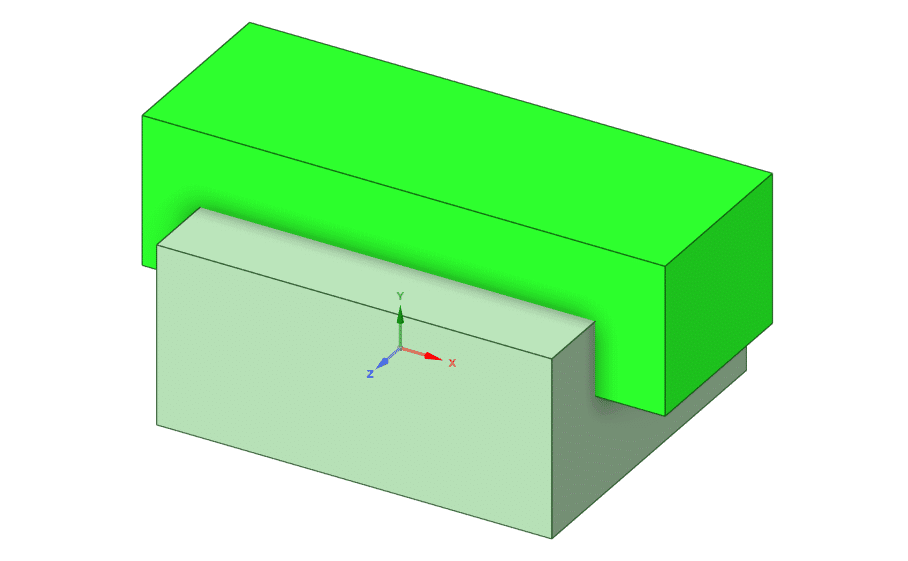
In general, the concept behind the Combine command is based on merging or subtracting existing bodies within a geometry. Splitting bodies in a model can be useful in many situations, especially in Computational Fluid Dynamics (CFD). For example, in many analyses we prefer to run the simulation in a periodic or symmetric manner, since both the geometry and the solution follow a repeating pattern. Instead of solving the entire computational domain which would significantly increase the computational cost, we can simply split or remove the repetitive or unnecessary sections of the geometry.
3. Split Body
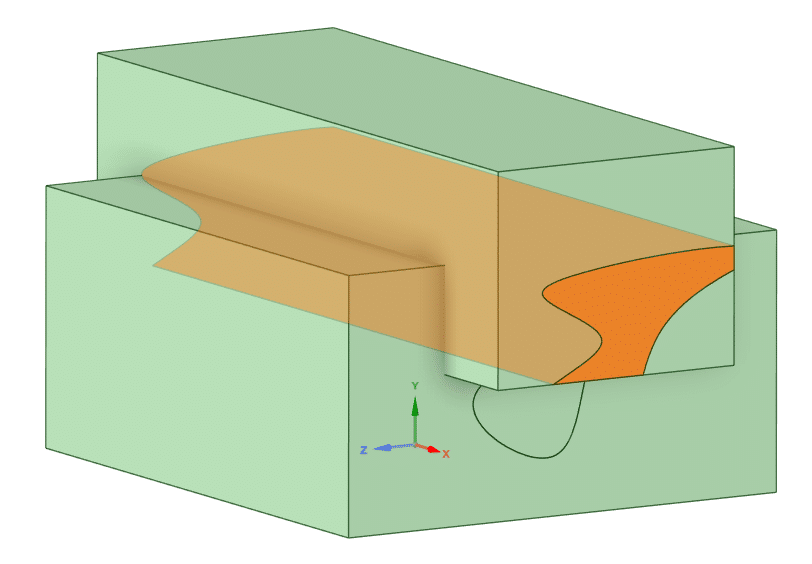
In this tutorial, we discussed how to split two bodies using the Combine command. However, there is another method to separate bodies from each other, which is the Split Body command. This command works by allowing you to cut or divide bodies using a plane. The plane can be a flat surface selected from within the geometry itself, or a custom plane that you create, such as a curved or an inclined one. Examples of each case are demonstrated in this lesson to help you fully understand how to use the Split Body command effectively in your modeling process.
 4. Split Face
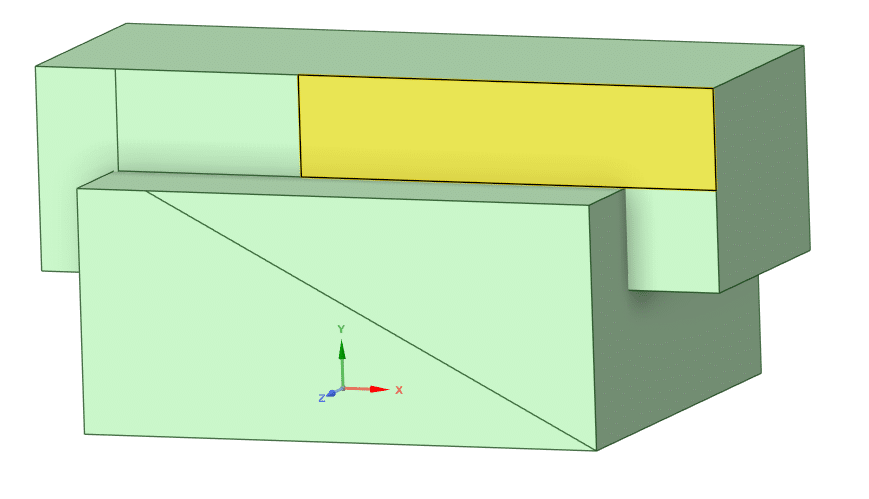
Split Face command is introduced as a useful tool for dividing the surface of a body into separate regions without cutting the body itself. With this command you can use either an existing plane, an edge, a curve, or even a sketch to split one or more faces of your geometry. This feature is especially helpful when you need to apply different boundary conditions or mesh controls on specific areas of a single surface in simulation or when you want to create new regions for additional modeling operations.
 5. Project
The Project command is used to transfer or map curves, edges, or sketches from one surface or plane onto another. This tool allows you to create reference lines or shapes directly on curved or angled surfaces without manually redrawing them. The projection can be made in different ways such as normal projection, which sends the geometry perpendicularly from the sketch plane onto the target surface, or directional projection, where you define a specific direction for the projection to follow.
6. Summary
At the end of this lesson you are expected to be able to use the tools you have learned in this and previous sessions to efficiently modify your 3D geometries based on your computational needs. You should now be capable of merging or subtracting existing bodies using the Combine command, and applying the different options of the Split Body tool to separate or trim geometries at specific locations required by your simulation setup.
You must be logged in to post a review.
 Talk On WhatsApp
 Talk On WeChat

Reviews
There are no reviews yet.