




Fluent Meshing Training Course: Session 7, Describe Geometry
Free
- Fluent Meshing, Describe Geometry
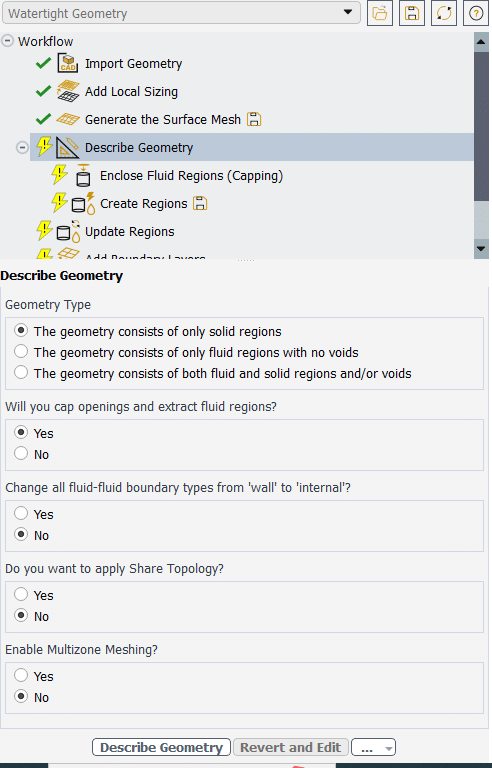
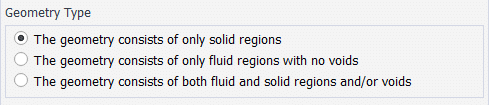
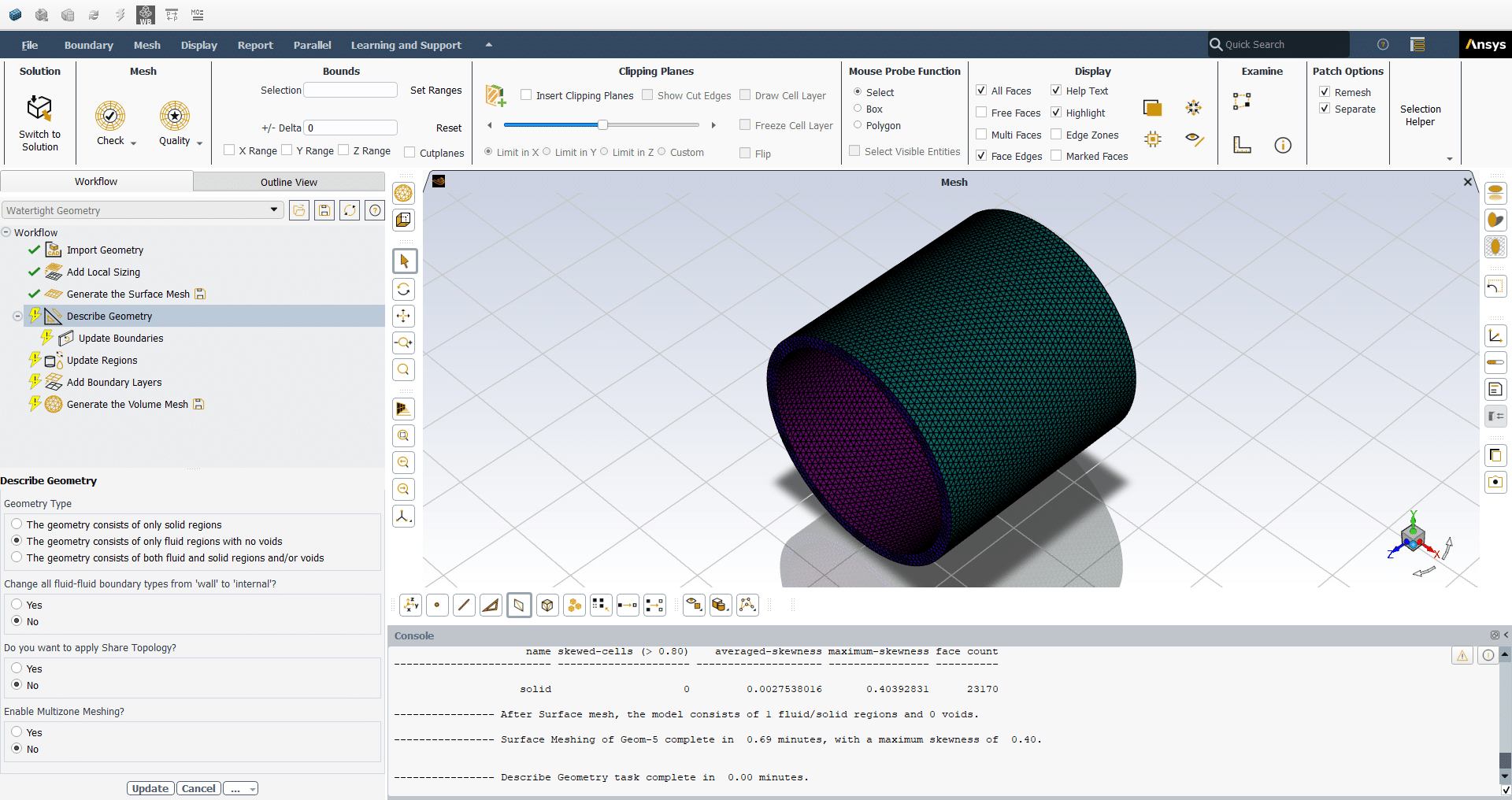
- Geometry Type
- Will you cap openings and extract fluid regions?
- Change all fluid-fluid boundary types from ‘wall’ to ‘internal’?
- Do you want to apply Shared topology?
- Enable multizone meshing?
To Order Your Project or benefit from a CFD consultation, contact our experts via email (info@mr-cfd.com), online support tab, or WhatsApp at +44 7443 197273.
There are some Free Products to check our service quality.
If you want the training video in another language instead of English, ask it via info@mr-cfd.com after you buy the product.
Description
Fluent Meshing: Describe Geometry
Geometry Type
In this Fluent Meshing course section focuses on identifying the appropriate geometry configuration for your simulation. Students learn to select between three primary options: solid-only regions for structural or thermal analysis in solids, fluid-only regions for pure flow dynamics without solid interactions, and combined fluid-solid regions for comprehensive multi-physics simulations. The choice directly influences the meshing workflow and determines which subsequent options become available in the Fluent Meshing interface.
Will you cap openings and extract fluid regions?
This feature becomes available when working with solid geometries that require fluid domain creation. Students learn how to transform solid boundaries into fluid inlets, outlets, or other flow regions by applying caps to selected surfaces. The process involves selecting appropriate boundaries, defining boundary conditions, and extracting fluid regions that will be used for CFD analysis, effectively converting solid geometry features into functional fluid domains.
Change all fluid-fluid boundary types from ‘wall’ to ‘internal’?
This critical decision determines how interfaces between different fluid regions are treated in the simulation. Selecting ‘yes’ creates internal boundaries that allow seamless fluid communication between adjacent regions, while selecting ‘no’ maintains wall boundaries that act as physical barriers. This choice significantly impacts the solver’s treatment of multi-region fluid flows and affects the final boundary condition setup.
Do you want to apply Shared topology?
Shared topology application controls mesh continuity between adjacent geometry parts. When enabled, it creates conformal meshes with continuous node connections at interfaces, ensuring seamless transitions and improved accuracy between different body parts. Disabling this option results in non-conformal meshes that offer more meshing flexibility for individual components but may introduce discontinuities at shared boundaries.
Enable multizone meshing?
In the Fluent Meshing this advanced feature allows strategic control over mesh generation in specific zones within the geometry. Students learn to combine different meshing strategies, such as creating hexahedral-dominant meshes in selected regions while maintaining tetrahedral meshes elsewhere. The multizone approach enables optimization of mesh quality in critical areas while maintaining computational efficiency, with additional control over scaling factors to match surface mesh characteristics.
You must be logged in to post a review.
 Talk On WhatsApp
 Talk On WeChat

Reviews
There are no reviews yet.