
SpaceClaim Course, Session 6: The Powerful Move Tool
Free
- Introduction to the Move tool in 3D modeling of SpaceClaim software
- different move options in SpaceClaim : Direction, Along Trajectory, Anchor, Radially About Axis, Up To, Fulcrum
- Practical use in shifting, copying, and accurately arranging complex geometries
- Improve speed, accuracy, and flexibility in your 3D designs in SpaceClaim
To Order Your Project or benefit from a CFD consultation, contact our experts via email (info@mr-cfd.com), online support tab, or WhatsApp at +44 7443 197273.
There are some Free Products to check our service quality.
If you want the training video in another language instead of English, ask it via info@mr-cfd.com after you buy the product.
Description
1. Introduction
In this session of the SpaceClaim training course, you will get familiar with one of the most practical tools in the software interface: the Move tool. In addition to learning how to make precise geometry selections, you will also explore the various options available in the Move command for repositioning objects. These options include Move Along Trajectory, Move direction, Anchor, Move radially about axis, Fulcrum and the Up To feature, each of which can be highly effective in different scenarios. Throughout this lesson, we will provide you with practical examples and hands on exercises to help you apply these tools efficiently in your own projects.
2. Selecting Options
When working with the Move command or any other tool in the SpaceClaim interface, making an accurate geometry selection is essential. The selected entity can be a surface, point, edge, or body, and choosing the right one ensures proper execution of commands.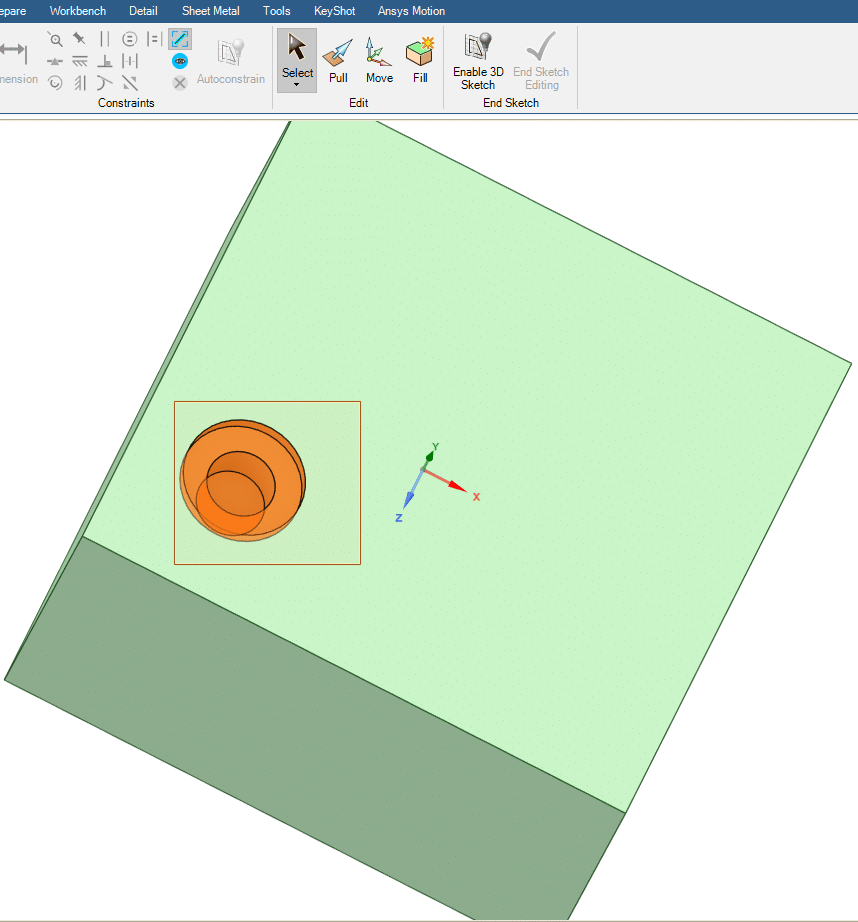
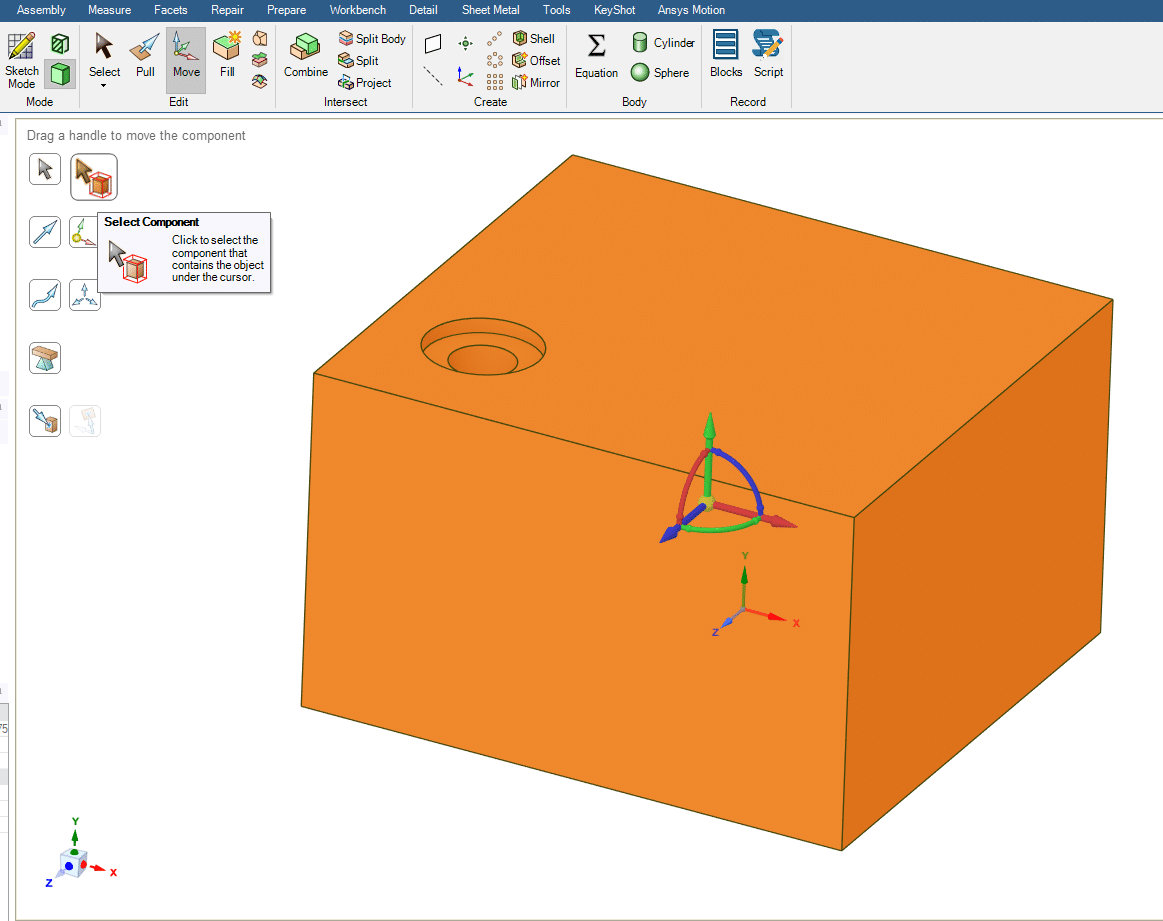
In this session, you will learn two practical selection methods including Box selection and Component selection, which becomes available once the Move command is activated. These techniques will help you improve the accuracy and efficiency of your geometry selections in SpaceClaim.
3. Move Tool
The Move command in is one of the most practical tools in SpaceClaim. It allows us to reposition selected entities, such as surfaces, points, edges, and components, along the default X, Y, and Z directions, and also to rotate them around different axes.
In addition to these basic functions, the Move command provides several advanced options that make geometry manipulation easier, more precise, and highly effective. In the following section, we will explore some of these features and their practical applications in SpaceClaim.
3.1. Move Direction
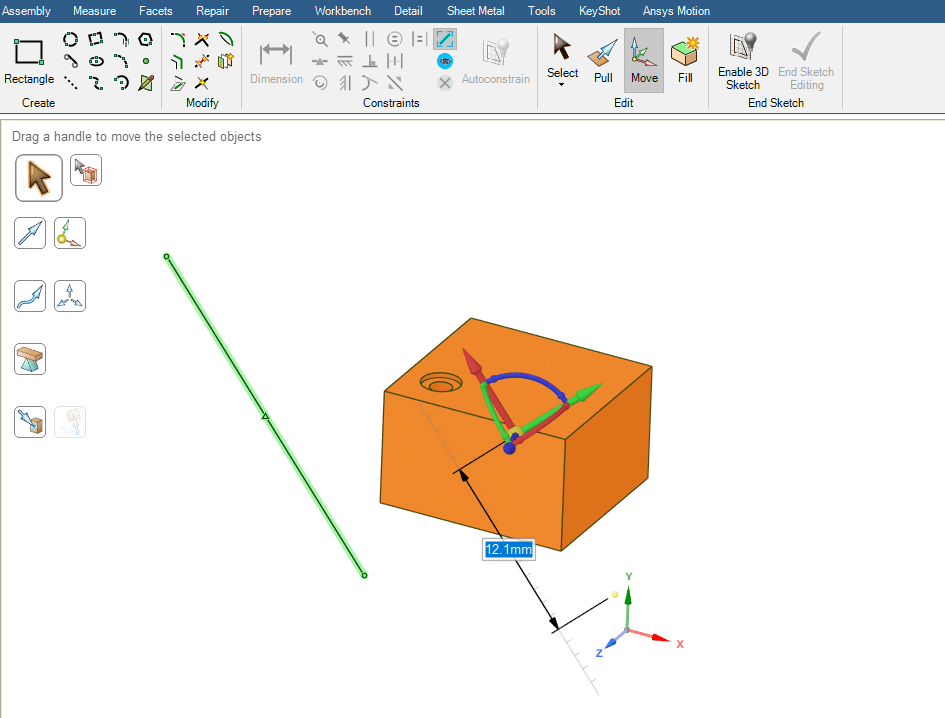
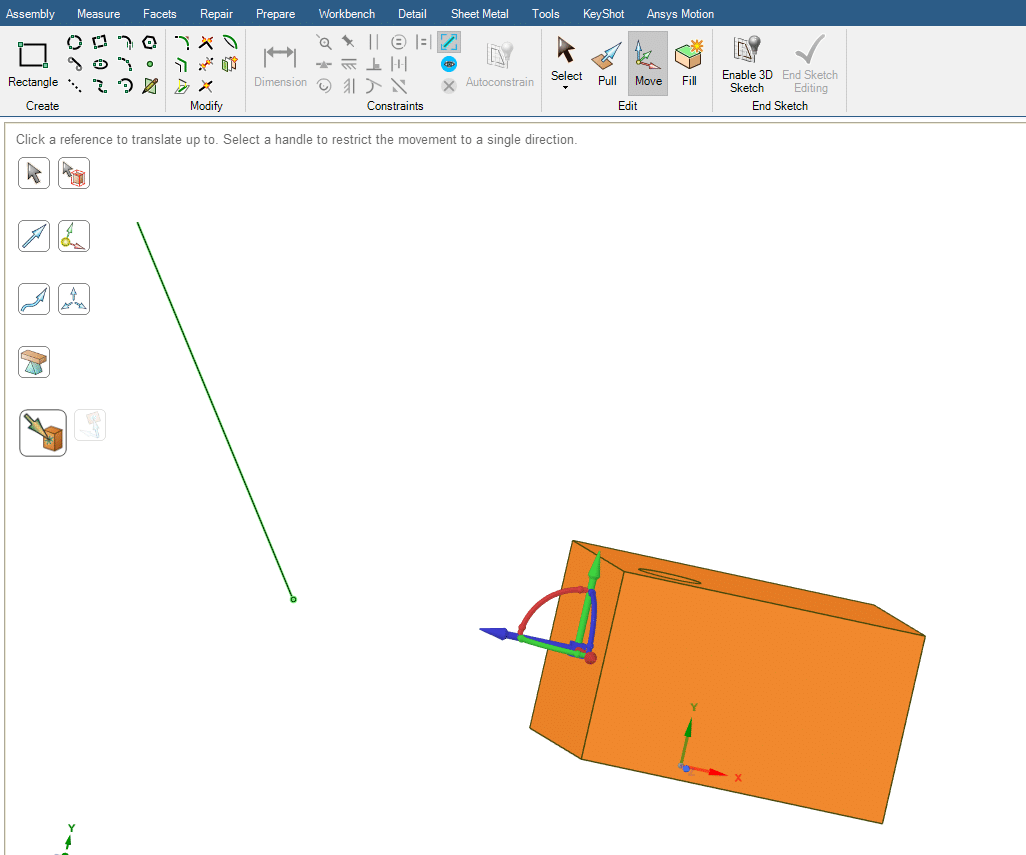
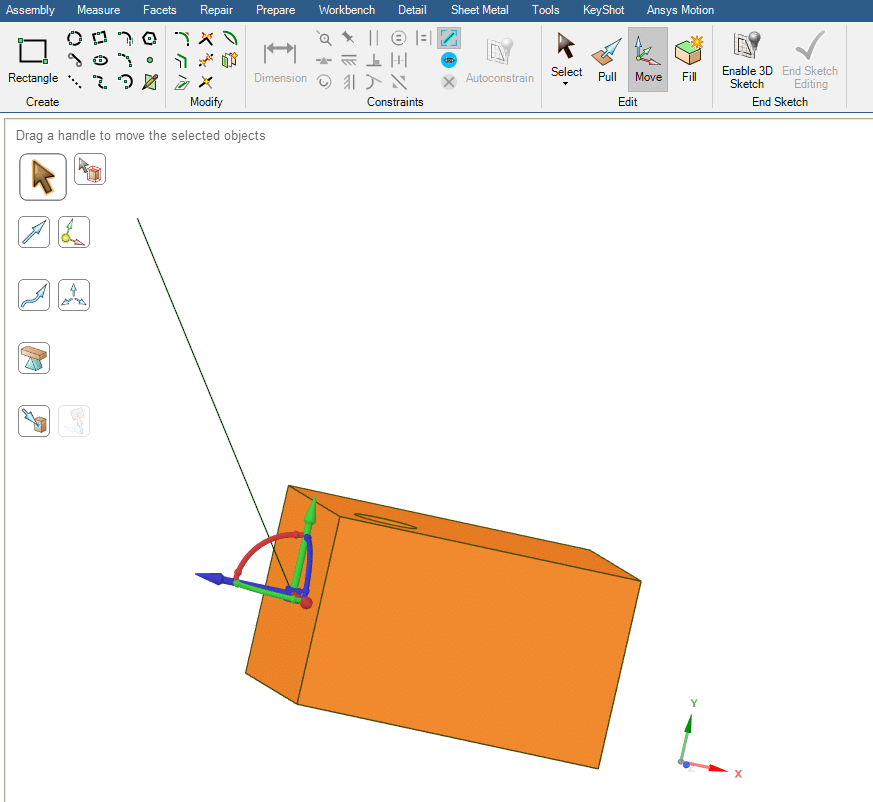
The Move Direction command allows us to move geometry along a specific direction or a reference line. For example, if we draw a diagonal line and then activate this command, the selected geometry can be translated precisely along the direction of that line. This ensures that the movement remains perfectly parallel to the chosen reference.
3.2. Move along Trajectory
Similar to the Move Direction command, the Move Along Trajectory option allows us to move geometry. However, instead of restricting the movement to a straight path, this command enables the geometry to follow curved or complex trajectories.
For example, if a curve is sketched in the design space, the selected geometry can be repositioned exactly along that curve using this command. This feature is especially useful when working with complex models where precise positioning along non linear paths is required.
3.3. Anchor
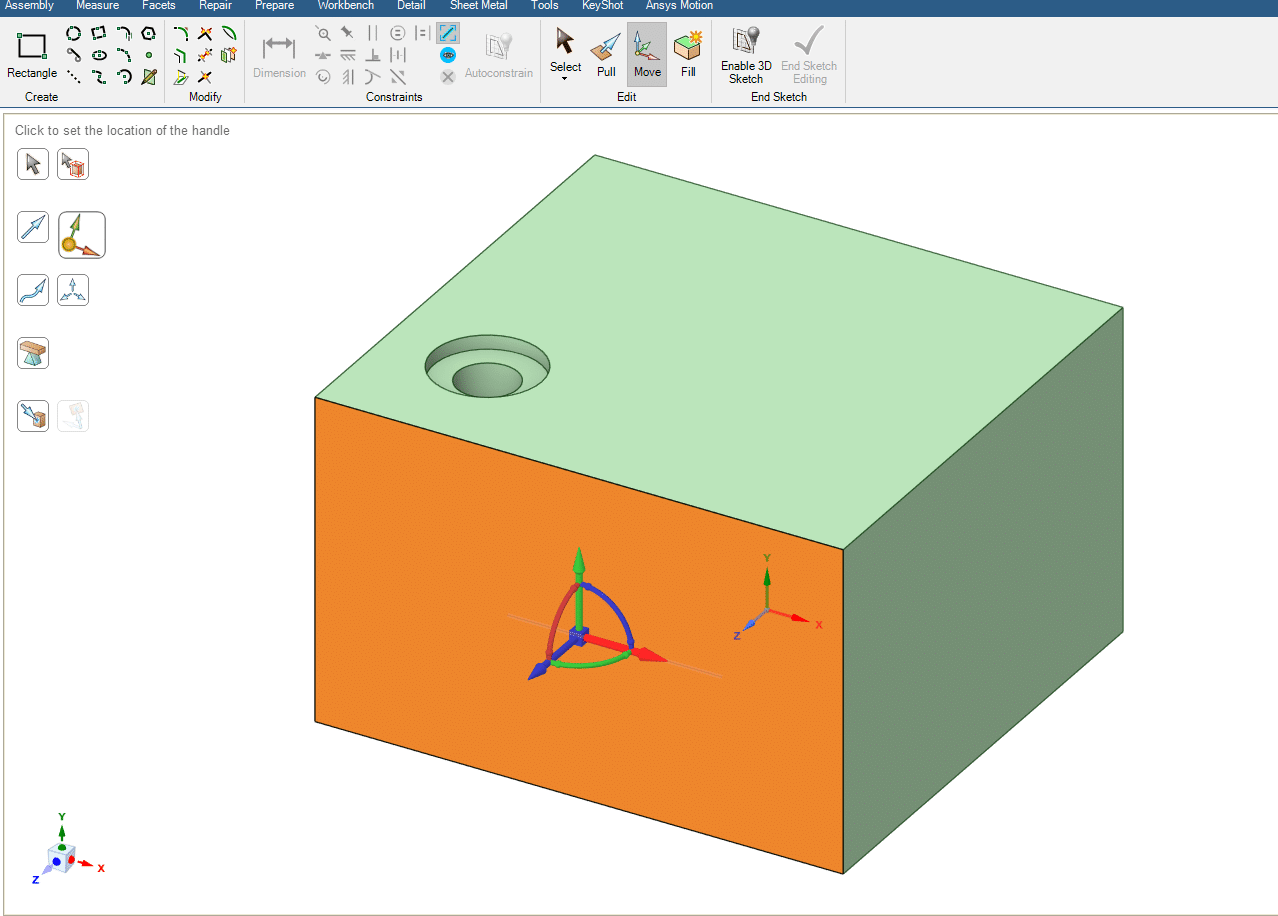
The Anchor option allows us to reposition the Move Handle. By default, when using the Move command, the handle is placed at the center of the selected geometry.
However, in many cases, we may need to move the geometry relative to another specific location. for example, from one of its corners, side faces, edges, or even a user-defined point. The Anchor tool makes this possible by letting us relocate the move handle to the desired position, enabling more controlled and precise movements.
3.4. Move radially about axis
The Move Radially About Axis option allows you to reposition selected geometry by moving it radially about a defined axis or reference line.
In simpler terms, instead of translating geometry along straight directions (X, Y, Z), this tool lets you pivot or rotate the geometry around a chosen axis. This feature is especially useful when arranging components that need to be positioned around a central axis, such as blades, circular patterns, or rotational assemblies.
3.5. Fulcrum
The Fulcrum option in the Move/Rotate tools allows you to define a pivot point (or hinge point) for rotation.
By default, geometry rotates about its center or the chosen axis. However, in many cases, you may need the rotation to occur about a custom point. With the Fulcrum tool, you can relocate the pivot to any desired location on the model, thus giving you precise control over rotational movement.
This feature is especially useful when simulating mechanisms such as doors, levers, or arms that need to rotate around a specific hinge point.
3.6. Up to
The Move Up To option allows you to move the selected geometry up to a chosen reference, such as a face, surface, plane, or edge. Instead of specifying a numerical distance, you simply select the target reference, and the geometry is translated until it exactly aligns with or touches the reference. This feature is particularly useful when positioning parts or surfaces precisely relative to existing geometry, without the need for manual distance calculation.
 4. Summary
 4. Summary
The goal of this session was to help you gain a deeper understanding of the Move tool, one of the most practical and versatile features in 3D modeling. This tool greatly simplifies the design workflow, especially when dealing with complex geometries.
As illustrated, when you create a 3D model, you may need to reposition certain components or even duplicate complex shapes. In such cases, familiarity with the Move tool becomes highly valuable.
You must be logged in to post a review.

 Talk On WhatsApp
 Talk On WeChat

Reviews
There are no reviews yet.